
Technology
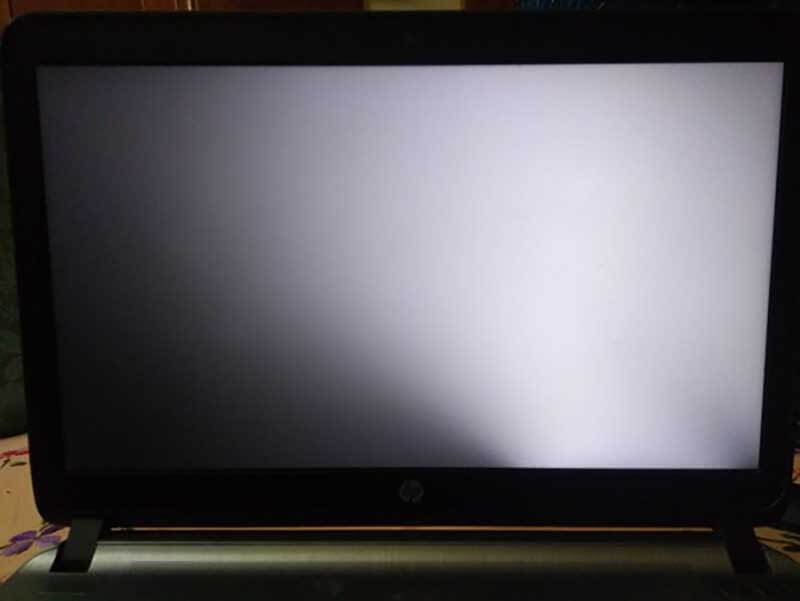
Why is there a white spot on my laptop screen?

Introduction
Mostly, this issue is due to faulty items like damaged or broken cables, faulty backlights, and loose connections. Have you ever noticed a perplexing white spot on your laptop screen, disrupting your viewing experience? Understanding the causes and effective solutions for these white spots is crucial for maintaining a pristine display. In this guide, we’ll delve into the reasons behind these spots, providing you with practical fixes and preventive measures. Whether you’re troubleshooting on your own or seeking professional help, this article equips you with the insights needed to restore your laptop screen’s clarity. Let’s unravel the mystery of white spots and ensure your viewing experience remains flawless.
Understanding the Causes of Why is there a white spot on my laptop screen
If you’re wondering, ‘Why is there a white spot on my laptop screen?’ it could be due to several factors. One common reason is a malfunctioning pixel, where a specific pixel on the screen remains stuck and displays a constant white spot. Another potential cause might be pressure or impact damage to the screen, leading to pixel abnormalities. Additionally, a loose or damaged cable connecting the screen to the laptop’s internal components can also result in white spots. It’s essential to investigate these possibilities to identify and address the root cause of the issue
Dead Pixels: Dead pixels are small, unresponsive areas on the screen that fail to display the intended color. These pixels often appear as tiny white dots and can result from manufacturing defects or wear over time. While a few dead pixels might not be noticeable, clusters of them can create visible white spots.
Pressure Damage: Exerting pressure on the laptop screen, such as closing the lid too forcefully or placing heavy objects on the closed laptop, can lead to pressure damage. This damage may manifest as white spots, disrupting the uniformity of the display. Avoiding excessive pressure is crucial to prevent this issue.
Liquid Damage: Spilling liquids on a laptop or exposing it to moisture can cause various issues, including the formation of white spots on the screen. Liquid ingress can damage the internal components, affecting the display’s functionality and appearance. Immediate drying and proper cleaning are essential to prevent further damage.
Manufacturing Defects: Some laptops may have manufacturing defects that become apparent over time. These defects can affect the screen’s performance, causing issues like white spots. Manufacturers may offer solutions for laptops still under warranty, making it crucial to identify defects early on.
Hardware Issues: Problems with the laptop’s internal hardware, such as a malfunctioning graphics card or faulty cables connecting the screen, can result in the manifestation of white spots. Diagnosing and addressing these hardware issues is essential for resolving the screen problem.
Software Issues: Software glitches or driver-related issues can also contribute to the occurrence of white spots on the laptop screen. Outdated or corrupted display drivers may need attention, and adjusting the software settings could be a potential solution.
LED Reflectors: The LED reflectors behind the screenplay are crucial in illuminating the display. If these reflectors become damaged or malfunction, they can create uneven lighting, leading to the formation of white spots. Repairing or replacing the LED reflectors may be necessary to restore the screen’s integrity.
How to Fix a White Spot on a Laptop Screen
“Why is there a white spot on my laptop screen?” Once the causes of white spots on a laptop screen are understood, implementing the right fixes is crucial to restore the display’s functionality. Below are detailed solutions addressing different scenarios associated with white spots:
Dead Pixel Fixer Tool
Dead pixels can be addressed using specialized tools designed to stimulate and revive malfunctioning pixels. These tools cycle through different colors rapidly, attempting to jolt the stuck pixel back to its normal function.
Steps:
Identify Dead Pixels:
Use online tools or apps that display solid colors to identify dead pixels. Look for any pixels that appear white or unresponsive.
Run the Dead Pixel Fixer:
Download and run a dead pixel fixer tool on your laptop. These tools usually cycle through colors at a high frequency, aiming to revive dead pixels. Follow the tool’s instructions carefully.
Be Patient:
Running the dead pixel fixer may take some time. Be patient and allow the tool to complete its cycle. Sometimes, this process needs to be repeated for better results.
Rubbing the Screen with a Cloth
Sometimes, white spots may be caused by dust or smudges on the screen. Cleaning the screen gently with a microfiber cloth can help eliminate these spots.
Steps:
Power Off the Laptop:
Ensure the laptop is powered off to prevent accidental inputs while cleaning.
Use a Microfiber Cloth:
Wipe the screen gently with a clean, microfiber cloth. Microfiber is effective in removing smudges and dust without scratching the screen.
Apply Minimal Pressure:
Avoid applying excessive pressure while cleaning to prevent any potential damage to the screen.
Fixing Pressure Damage using a Hairdryer
Pressure damage can create white spots on the screen. Applying mild heat with a hairdryer can sometimes help alleviate this issue.
Steps:
Power Off and Disconnect:
Turn off the laptop and disconnect it from any power source before attempting to fix pressure damage.
Apply Heat:
Use a hairdryer on a low heat setting and hold it a few inches away from the affected area. Gently heat the spot for a short duration.
Check for Improvement:
After applying heat, check the screen for any changes. Be cautious not to overheat, as excessive heat can cause damage.
Using a Cleaning Solution
For persistent spots due to liquid or stubborn stains, a gentle cleaning solution can be employed to clean the screen.
Steps:
Prepare a Cleaning Solution:
Mix a cleaning solution using distilled water and isopropyl alcohol in equal parts. Steer clear of strong chemicals that might harm the screen.
Apply to a Microfiber Cloth:
Dampen a microfiber cloth with the cleaning solution. Make sure the fabric isn’t soggy.
Gently Wipe the Screen:
Using a moist towel, gently wipe the afflicted area. Follow up with a dry microfiber cloth to remove any excess moisture.
Replacing the LCD Screen
If the white spots persist and are not resolved by software or cleaning methods, it may be necessary to replace the LCD screen.
Steps:
Determine Compatibility:
Identify the specific model of your laptop and ensure compatibility with the replacement LCD screen.
Acquire a Replacement Screen:
Purchase a replacement LCD screen from a reputable supplier or laptop manufacturer.
Professional Installation:
If you’re not familiar with laptop disassembly, consider seeking professional assistance for the installation of the new LCD screen.
Fixing Manufacturing Defects
Manufacturing defects may require professional intervention. If your laptop is under warranty, contact the manufacturer for assistance.
Steps:
Check Warranty Status:
Verify if your laptop is still under warranty. Most manufacturers offer a warranty period covering manufacturing defects.
Contact Manufacturer Support:
Reach out to the laptop manufacturer’s customer support. Please explain the issue and follow their guidance on resolving manufacturing-related problems.
Contacting the Manufacturer
If all else fails, or if the issue is related to hardware defects, reaching out to the manufacturer can provide valuable insights and potential solutions.
Steps:
Gather Information:
Document details about your laptop, including the model number, purchase date, and a description of the issue.
Contact Customer Support:
Reach out to the manufacturer’s customer support via phone or online channels. Give them the information they require, and heed their advice.
Prevention Strategies for White Spots on Laptop Screens
Preventing white spots on a laptop screen involves adopting proactive measures to safeguard the display from potential damage and wear. By incorporating the following strategies into your routine, you can minimize the risk of encountering white spots and ensure a longer lifespan for your laptop screen:
Regular Cleaning
Regular cleaning is essential to remove dust, smudges, and potential contaminants that can contribute to the formation of white spots on the laptop screen.
Steps:
Power Off the Laptop:
Always turn off the laptop before cleaning the screen to avoid accidental inputs.
Use a Microfiber Cloth:
Gently wipe the screen with a microfiber cloth to remove dust and smudges. Microfiber is effective and safe for the screen surface.
Avoid Harsh Cleaning Agents:
Refrain from using harsh chemicals or abrasive materials for cleaning, as they may damage the screen.
Scheduled Cleaning Routine:
Establish a regular cleaning routine, depending on your usage patterns. For daily use, a quick wipe may be sufficient, while a more thorough cleaning can be performed weekly.
Avoiding Exposure to Extreme Temperatures
Exposure to extreme temperatures can adversely affect the components of a laptop, including the screen. Preventing such exposure is vital to avoid potential screen damage.
Steps:
Avoid Leaving the Laptop in a Hot Car:
Never leave the laptop in a parked car, especially on hot days, as the intense heat can damage internal components and contribute to the formation of white spots.
Protect from Cold Temperatures:
In cold environments, allow the laptop to acclimate to room temperature before powering it on. Sudden temperature changes can cause condensation inside the device.
Maintain Optimal Operating Temperatures:
Ensure the laptop operates within the recommended temperature range specified by the manufacturer. Overheating can lead to hardware issues, including screen malfunctions.
By integrating these prevention strategies into your laptop usage habits, you can significantly reduce the likelihood of encountering white spots on the screen. Regular maintenance, careful storage, and environmental awareness contribute to the overall health and longevity of your laptop’s display. In the next section, we will address common questions and concerns related to white spots on laptop screens in the form of a Frequently Asked Questions (FAQ) section.
FAQS
In this section, we will address common questions and concerns related to white spots on laptop screens. Understanding these frequently asked questions can provide users with valuable insights into troubleshooting and resolving issues associated with white spots.
Can I Fix a White Spot on My Laptop Screen Myself?
Users can often attempt to fix white spots on their laptop screens using various methods outlined earlier in the article. Solutions such as using dead pixel fixer tools, adjusting display settings, and cleaning the screen can often address minor issues. However, for more complex problems, such as hardware defects or the need for screen replacements, seeking professional assistance may be necessary.
How Do I Know if the White Spot is Caused by a Malfunctioning Pixel or a Faulty Screen Driver?
Determining the cause of white spots can involve a process of elimination. If the white spots appear as static, unchanging dots, they may be due to malfunctioning pixels. On the other hand, if the white spots seem to move, change, or are accompanied by other display anomalies, it could be related to faulty screen drivers or software issues. Running diagnostic tests and updating display drivers can help identify and address these issues.
How Do I Fix a White Spot Caused by a Malfunctioning Pixel?
For white spots caused by malfunctioning pixels, utilizing a dead pixel fixer tool is a common approach. These tools attempt to stimulate and revive stuck pixels by cycling through different colors rapidly. Running the tool and being patient through multiple cycles can sometimes restore the affected pixels.
How Do I Fix a White Spot Caused by a Faulty Screen Driver?
Issues with screen drivers or software can be addressed by updating or reinstalling the display drivers. Access the device manager on your laptop, locate the display adapter, and update the driver software. Alternatively, uninstalling and reinstalling the display drivers may resolve software-related problems causing white spots on the screen.
Conclusion
In conclusion, addressing white spots on your laptop screen requires a comprehensive understanding of potential culprits, from dead pixels to hardware malfunctions. Armed with the practical fixes and prevention strategies outlined in this guide, you now have the tools to troubleshoot and maintain a crystal-clear display.
Remember, whether it’s a DIY solution or seeking assistance from professionals, restoring your laptop screen’s integrity is achievable. By implementing preventive measures and staying vigilant, you can prolong the life of your screen and enjoy a seamless viewing experience. Here’s to a laptop screen that remains free from perplexing white spots!


IPTV pricing is primary decision factor for cord-cutters evaluating alternatives to cable TV. Annual costs of £20-40 monthly for IPTV versus £70-100 for cable create compelling financial incentive to switch. However, pricing landscape is fragmented: tiered subscriptions, promotional offers, bundling options, hidden costs complicate true cost comparison. Understanding IPTV pricing structure is essential for identifying lowest total-cost-of-ownership option.
Market competition has driven prices down substantially since IPTV’s early days (2010-2015) when premium services cost £50+/month. Today’s competitive landscape features IPTV Smarters pro and dozens of competitors fighting for market share through aggressive pricing. Financial math favors IPTV decisively.
Cable TV Pricing Reality
US cable TV: £165/month average (€150, $165). UK cable: £40-50/month. France cable: €75-95/month. These prices include channels only—premium channels cost additional. Sports packages (usually EUR 15-25/month extra) are expensive. Equipment rental fees (£5-15/month) add up. Installation charges (£50-100 one-time). Promotional rates (first 12 months) are misleading—prices increase dramatically after promotional period ends.
Long-term costs are significant. Five-year cable TV cost: France €4,500-5,700 (at €75-95/month). UK five-year cost: £1,200-1,500. US five-year cost: $9,900-12,000 (£7,900-9,600). These are baseline without premium packages or sports access.
IPTV Service Pricing Breakdown
| Service Type | Monthly Cost | Annual Cost | Primary Content |
|---|---|---|---|
| Cable TV (France) | €75-95 | €900-1,140 | Linear + on-demand TV |
| IPTV Service (Premium) | €35-45 | €420-540 | Linear + VOD + international channels |
| IPTV Service (Standard) | €20-30 | €240-360 | Linear channels, basic VOD |
| IPTV + Netflix + Disney+ | €58-68 | €700-800 | Channels + premium streaming content |
| Streaming Only (3-4 services) | €45-55 | €540-660 | On-demand content only |
Hidden Costs Analysis
Streaming equipment cost: Firestick (£55-65 one-time), Android box (£40-60), or Smart TV (included). These last 3-5 years, amortizing to £1-2/month. Internet upgrade might be required: if connection is under 10 Mbps, upgrade necessary for reliable streaming (£10-20/month typically). VPN optional but recommended (£5-15/month). Device replacement after 5 years (one-time). Total hidden costs: £1-37/month depending on requirements.
Cable hidden costs are often larger: equipment rental (£5-15/month), installation (amortized: £2-3/month), premium channel packages (£15-30/month typical), sports access (£10-25/month typical). Total: £32-73/month in hidden costs beyond base price.
Financial Comparison: Five-Year Total Cost Analysis
Cable TV alone: €4,500-5,700 (France). IPTV Premium + Netflix + Disney+: €700-800/year × 5 = €3,500-4,000. Five-year savings: €500-2,200. Budget IPTV Service: €240-360/year × 5 = €1,200-1,800. Five-year savings: €2,700-4,500. These calculations assume equipment costs amortize within usage period.
Savings increase with family size. Family of four sharing single IPTV subscription: EUR 1,200-1,800 total (per-person EUR 300-450). Cable: EUR 4,500-5,700. Family savings: EUR 2,700-4,500 over five years (EUR 540-900 per person).
Premium vs Budget IPTV Services
Premium services (€35-45/month) typically offer more channels, better reliability, professional support, and regular updates. Services from established providers (Orange TV Now, major international IPTV services). Budget services (€20-30/month) offer core channels but might have reliability issues, limited support, or outdated app interfaces.
https://iptvsmartersprohub.com represents mid-tier approach: professional service (premium features, reliability, support) at moderate pricing. Value proposition: professional-grade service without premium price tag. Similar services compete on this positioning—quality at reasonable cost.
Promotional Pricing Traps
Avoid promotional pricing decisions. Cable TV often advertises €30/month first year, jumping to €80/month year two. Hidden contract cancellation fees (£100-200) trap customers. IPTV promotional pricing: some services offer €9-15/month introductory rates, increasing after 6-12 months. Read terms carefully. Calculate true long-term cost, not promotional rate.
Bundle Strategies
IPTV + streaming combines best of both: IPTV for live television, Netflix/Disney+/Prime for on-demand content. Combined cost (€58-68/month) is cheaper than cable TV (€75-95) while providing superior on-demand content. This bundled approach dominates European market in 2026.
IPTV smarters services bundled with streaming services offer convenience. Some platforms integrate with Netflix, Disney+ within single interface. Evaluate integrated offerings against separate subscriptions for cost comparison.
Frequently Asked Questions
Q: Is IPTV cheaper than cable TV really?
Yes. €35-45 IPTV vs €75-95 cable saves €40-60/month. Annual savings: €480-720. Five-year savings: €2,400-3,600 easily. Bundled IPTV + streaming (€58-68) still saves €10-40/month versus cable. Long-term savings are mathematically undeniable.
Q: What IPTV pricing should I avoid?
Avoid services costing under €10/month (often unreliable, poor support). Avoid services without free trial (no risk-free evaluation). Avoid services with long contract lock-in (prefer month-to-month). Avoid services with auto-renewing subscriptions (difficult to cancel). Reputable services are transparent about pricing and cancellation policy.
Q: Are annual IPTV subscriptions cheaper than monthly?
Usually 10-20% discount for annual prepayment. €35/month = €420/year. Annual discount often reduces to €350-380/year (saving €40-70). Financial advantage is modest. Choose based on commitment comfort level, not price optimization.
Q: What’s cheapest reliable IPTV service?
€20-30/month services are cheapest. Quality varies—some are excellent, others unreliable. Use trial period to test reliability before committing. Paying €35-45/month for premium service you trust beats saving €10-15/month on service experiencing frequent outages.
Technology
Digital Divide in French Education: IPTV Infrastructure Gaps Impact Rural Student Learning

Education & Technology Equity Analysis | August 2026 | 12-minute read
A rural school in Auvergne has 10 Mbps broadband. For 150 students. Peak hours? Maybe 2 Mbps per student if they’re lucky.
Meanwhile, Paris schools have fiber at 100+ Mbps.
This creates outcome disparity that doesn’t make obvious sense: technology quality shouldn’t vary this dramatically within the same country.
Yet it does.
Why Broadband Statistics Lie
“89% of rural France has broadband access” sounds good until you understand threshold: 25 Mbps minimum.
Rural schools operate at 10-15 Mbps. Technically “have broadband.” Practically insufficient for modern curriculum.
Modern curriculum means video-based learning. Science labs recorded as videos. Language instruction from native speakers. History lessons with historical footage. Mathematics walkthroughs.
All require streaming video. IPTV France optimized educational content could theoretically work at lower bandwidth, but requires deployment rural schools don’t have. Services at https://abonnementiptvsmartersproplayer.com/ demonstrate this potential but lack access to rural school infrastructure.
10 Mbps becomes a serious constraint when 30 students simultaneously attempt to watch 1080p educational content. You can’t. Network collapses.
The Cascading Problem
Teachers design curriculum for urban schools (adequate bandwidth). Assign video-based homework.
Rural students attempt homework on inadequate bandwidth. Video buffers. Quality degrades. Content inaccessible.
Rural students don’t do homework. Fall behind. Test scores decline. College preparation suffers.
This isn’t a technology problem. It’s an equity problem masked as technology problem.
Why General Broadband Investment Doesn’t Solve This
Household broadband investment (Fiber-To-The-Home) benefits Netflix consumption. School broadband requirements are different.
Schools need: 100+ Mbps sustained capacity during school hours, reliability (near-zero downtime), optimization for classroom environments (low latency, quality consistency).
Household broadband designed for: variable demand, consumer tolerance for occasional buffering, price optimization.
Requirements misalign. So household fiber deployment doesn’t automatically solve school bandwidth needs.
Rural schools still stuck with insufficient bandwidth despite general broadband expansion. Specialized IPTV smarters infrastructure remains unavailable.
The IPTV Solution (Which Could Actually Work)
Educational IPTV platforms specifically optimize for school environments. Lower bandwidth requirements through efficient streaming protocols, local caching of common content, prioritization of educational uses.
Rural school with 15 Mbps total bandwidth. Deploy IPTV infrastructure locally. Educational content cached on school servers. Bandwidth requirements drop dramatically.
Same school with general-purpose broadband? Can’t stream Netflix efficiently. Can’t stream YouTube reliably. Can stream IPTV-optimized educational content smoothly.
This is structural difference. Educational IPTV designed for constrained bandwidth environments. General streaming designed for unconstrained.
What Actually Needs To Happen (And Won’t)
Schools need dedicated broadband infrastructure investment separate from household deployment.
Governments need to fund school-specific networks requiring 100+ Mbps availability.
Universities need to partner with schools providing educational IPTV content.
None of this is happening with necessary urgency.
Policy discussions focus on household fiber (consumer benefits are obvious). School broadband remains deprioritized (benefits are measurable but less politically visible).
The Equity Problem (Which Is Unresolved)
Technology literacy correlates strongly with future outcomes. Rural students without technology familiarity develop STEM skills slower. College STEM programs remain out of reach. Career options narrow.
Infrastructure gap becomes perpetual disadvantage.
This is solvable. Schools could get adequate infrastructure. Governments could prioritize it. But they’re not.
So rural-urban outcome disparity persists, justified by statistics that claim rural broadband is “adequate.”
It’s not adequate. Just adequate at lying about adequacy.
Frequently Asked Questions
Q: Why can’t rural schools just use Netflix for educational content?
Netflix requires 5-6 Mbps per simultaneous stream. 30 students need 150-180 Mbps. Rural schools have 15 Mbps total. Math doesn’t work.
Q: Can educational content be downloaded instead of streamed?
In theory yes. In practice, pre-downloading requires advanced planning. Teachers can’t assign new content spontaneously. System lacks flexibility.
Q: How much does school-focused broadband infrastructure cost?
Significant. Hundreds of millions for nationwide deployment. But less than lost economic opportunity from rural students falling behind urban peers.
Q: Would IPTV infrastructure actually solve rural education gaps?
Partially. It enables curriculum modernization at constrained bandwidth. But it’s not complete solution. Structural investment in education remains necessary.
Q: Why hasn’t France addressed this gap yet?
Urban bias in policy. Urban voters are larger constituency. Rural problems less politically visible. Classic structural inequality.

Leadburst Digital helps established South African businesses generate measurable sales opportunities through targeted digital marketing. The approach combines paid advertising, conversion-focused landing pages, lead management and performance reporting.
Rather than using the same strategy for every company, Leadburst Digital considers the specific customer journey, offer and sales process of each business.
Lead generation tailored to the business
Different industries require different approaches. A professional service provider may need consultation bookings, while a contractor may need site-inspection requests. An ecommerce business selling higher-value products may require product enquiries or assisted sales conversations.
Leadburst Digital can develop campaigns around:
- The business’s target customer
- Its geographic service area
- The value of the product or service
- The customer’s decision-making process
- The company’s sales capacity
- The advertising budget
- The type of lead required
- The actions that represent a valuable conversion
This helps ensure that the campaign supports the business’s actual objectives.
A combination of advertising and lead management
Leadburst Digital can assist with more than generating an initial enquiry. Depending on the campaign requirements, the overall lead generation process may include:
- Google Ads
- Facebook and Instagram advertising
- Keyword and audience research
- Advertising copy and creative
- Landing-page development
- Lead forms and qualification questions
- Call and conversion tracking
- Lead delivery
- CRM integration
- Automated follow-up
- Appointment-setting processes
- Campaign optimisation
- Performance reporting
This creates a more connected process between the advertisement and the eventual sales conversation.
Performance-focused campaign optimisation
Once campaigns are active, Leadburst Digital reviews the available performance data to identify opportunities for improvement. This may involve adjusting keywords, audiences, adverts, budgets, landing pages or qualification questions.
The objective is to understand which combinations are generating the most commercially valuable opportunities. Where possible, campaign data should be connected to sales results so that decisions are not based only on clicks or form submissions.
Clients can improve this process by providing regular feedback on:
- Invalid or duplicate enquiries
- Unreachable leads
- Qualified prospects
- Appointments booked
- Quotations issued
- Sales completed
- Revenue generated
- Common objections
- Reasons for lost opportunities
This information helps Leadburst Digital make more informed marketing decisions.
Choosing the right agency partnership
Before appointing a lead generation agency, business owners should confirm how the relationship will work. Important questions include:
- Who will own the advertising accounts and campaign data?
- How will leads be delivered?
- What information will be collected?
- How will lead quality be assessed?
- Which advertising costs are excluded from the agency’s fees?
- How frequently will campaigns be reviewed?
- What reporting will be provided?
- Who is responsible for contacting and closing the leads?
Leadburst Digital is best suited to established businesses that offer a proven product or service and have the capacity to respond to new opportunities. No agency can guarantee that every lead will become a customer. Pricing, reputation, sales ability, availability and customer service all influence the final result.
If you are looking for a lead generation agency in South Africa, contact Leadburst Digital to discuss your business, current marketing challenges and growth goals. A clear strategy can help you attract more suitable prospects, improve your follow-up process and create a more measurable path towards new business.

IPTV Pricing 2026: Real Costs Compared to Cable TV and Streaming Services

Digital Divide in French Education: IPTV Infrastructure Gaps Impact Rural Student Learning

Why Choose Leadburst Digital as Your Lead Generation Agency?

Catch-Up TV and Replay on IPTV Smarters Pro: How to Watch Missed French Programmes in 2026

M3U vs Xtream Codes API: Which IPTV Connection Method Works Better for French Subscribers?
Quelle Application IPTV Choisir pour sa Smart TV en France : Comparatif 2026

Why Smaller Teams Are Outperforming Larger Organizations: Sabeer Nelli Explains the Shift

Modern Interior Design Services in Bangkok: Transform Your Space Today

TiviMate Catch-Up TV: How Terugkijken Works for Belgian and Dutch Viewers (And When It Does Not)

Paying for IPTV in the Netherlands: iDEAL, Cancellation Rights, and What Your Provider Owes You
How to Watch Dutch and Belgian TV During Your Vacation (Without a VPN That Half-Works)
IPTV for Dutch Families: Children’s Channels, Parental Controls, and What Parents Actually Need to Know
The Dutch Sports Fan’s Television Problem (And Why IPTV Is the Only Honest Answer)
How IPTV is Transforming Home Entertainment Across the Netherlands: A Complete Practical Guide for Dutch Viewers in 2026
The Dutch Viewer’s Complete Guide to IPTV: What It Is, How It Works, What You Can Watch, and What to Expect Before You Start
Is Trading Is The Best Investment Option After Retirement?

The Ultimate Guide to 35mm Film Developing Lab

10 Things to Do in Punta Mita

Save on Campervan Rentals with a roadsurfer Gutscheincode

Tailored Tours to Switzerland | Private & VVIP Experiences

Best Things to Do in New York City – Ultimate Travel Guide

Explore New Real Estate Programs in Marrakech
Why is there a white spot on my laptop screen?

How to Be the Best Real Estate Agent Murfreesboro

Find the Best Real Estate Agents Main Line

6×7

Guide to Buying Testosterone Propionate Safely and Effectively

Effective Property Management in Marrakech Morocco

Throne Of Seal Insert E108 Pan Xiuyu

Shana Roberts Northbrook | Discover Her Story
-
 News6 months ago
The Dutch Sports Fan’s Television Problem (And Why IPTV Is the Only Honest Answer)
-
 Technology6 months ago
How to Watch Dutch and Belgian TV During Your Vacation (Without a VPN That Half-Works)
-
 Technology6 months ago
How IPTV is Transforming Home Entertainment Across the Netherlands: A Complete Practical Guide for Dutch Viewers in 2026
-
Technology6 months ago
The Dutch Viewer’s Complete Guide to IPTV: What It Is, How It Works, What You Can Watch, and What to Expect Before You Start
-
 Technology6 months ago
IPTV for Dutch Families: Children’s Channels, Parental Controls, and What Parents Actually Need to Know
-
Technology5 months ago
Quelle Application IPTV Choisir pour sa Smart TV en France : Comparatif 2026
-
 Technology6 months ago
Paying for IPTV in the Netherlands: iDEAL, Cancellation Rights, and What Your Provider Owes You
-
Technology3 months ago
Catch-Up TV and Replay on IPTV Smarters Pro: How to Watch Missed French Programmes in 2026